
Proper usage and maintenance of the MagSafe power adapter can substantially increase the life of the adapter. Discussion While the MagSafe power adapter is designed to travel with your portable Apple computer, certain usage patterns can contribute to the fraying or breaking of cables. The MagSafe adapter, like any other metal wire or cable, is subject to becoming weak or brittle if repeatedly bent in the same spot. Follow the recommendations below to reduce the likelihood of damaging the adapter. Inspection The most important way to maintain adapter health is to regularly inspect the cables, connectors, and the adapter itself for any kinks, breaks,
Properly disconnecting the MagSafe adapter from your Apple portable can increase the life of the adapter and reduce wear. Discussion To disconnect the MagSafe adapter from your Apple portable, grab the connector as shown in Figure 1 and tilt it up, down, or to the right or left side, as shown in Figures 2, 3, 4, and 5. Figure 1 Grabbing the MagSafe connector Figure 2 Tilting the MagSafe connector upward Figure 3 Tilting the MagSafe connector downward Figure 4 Tilting the MagSafe connector to the right Figure 5 Tilting the MagSafe connector to the left Do not attempt to disconnect the
 If the screen is blank or shows a low-battery image
iPod touch is low on power and needs to charge for up to ten minutes before you can use it. For information about charging iPod touch, see "Charging the Battery" in the iPod touch Features Guide.
If iPod touch doesn't appear in iTunes or you can't sync iPod touch
The iPod touch battery might need to be recharged. For information about charging iPod touch, See "Charging the Battery" in the iPod touch Features Guide.
If that doesn't work, disconnect other USB devices from your computer and
If the screen is blank or shows a low-battery image
iPod touch is low on power and needs to charge for up to ten minutes before you can use it. For information about charging iPod touch, see "Charging the Battery" in the iPod touch Features Guide.
If iPod touch doesn't appear in iTunes or you can't sync iPod touch
The iPod touch battery might need to be recharged. For information about charging iPod touch, See "Charging the Battery" in the iPod touch Features Guide.
If that doesn't work, disconnect other USB devices from your computer and
Battery Update 1.3 updates battery firmware and addresses battery performance issues with the 15-inch MacBook Pro. System Requirements Installation of Battery Update 1.3 requires Mac OS X 10.4.10 or later. The Battery Update 1.3 supports the following products: MacBook Pro (15-inch) MacBook Pro (15-inch Glossy) MacBook Pro (15-inch Core 2 Duo) MacBook Pro (15-inch 2.4/2.2GHz) Note: After Battery Update has been installed, each battery you insert into your MacBook Pro will be updated automatically. When will the battery be updated? The BatteryUpdater will check to see if a battery needs to be updated on startup, wake from sleep, and when a battery is inserted. If in these cases there is
iTunes can sync photos to your iPod from several applications or directly from a folder of photos. When using a Mac, photos can be synced from iPhoto and when using Windows photos can be synced from Adobe Photoshop Elements or Adobe Photoshop Album. iPod models with a color display are compatible with many different types of photo file formats. If you're using your iPod with a Mac, you can view JPEG, TIFF, JPG 2000, GIF, PICT, PNG, SGI, and BMP photos; with a Windows-based iPod, you can view JPEG, TIFF, GIF, PNG, and BMP photos. Read this article to learn
This document describes the security content of iPhone v1.1.1 Update. For the protection of our customers, Apple does not disclose, discuss, or confirm security issues until a full investigation has occurred and any necessary patches or releases are available. To learn more about Apple Product Security, see the Apple Product Security website. For information about the Apple Product Security PGP Key, see "How to use the Apple Product Security PGP Key." Where possible, CVE IDs are used to reference the vulnerabilities for further information. To learn about other Security Updates, see "Apple Security Updates." iPhone v1.1.1 Update Bluetooth CVE-ID: CVE-2007-3753 Impact: An attacker
The following devices have support for TV Out:
iPod touch
iPhone (software version 1.1.1 or later required)
iPod nano (3rd generation)
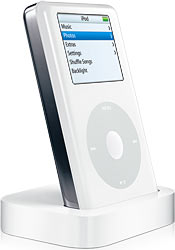
iPod classic
iPod (5th generation)
iPod with color display (iPod photo)
Note: Other iPod models may support viewing of photos or slideshows on the iPod display but do not support TV Out.
The following docks support TV Out when used with an iPod model or iPhone that supports TV Out:
Apple Universal Dock
This article lists all available firmware updates for each Intel-based Mac. Firmware updates for Intel-based Macs may not be displayed automatically using Software Update. If they do not appear in Software Update, they must be manually downloaded from the Apple Support Downloads site. If you are unsure whether your computer needs a particular update, simply download and open the update installer. The installer will alert you if the firmware update is already installed or not needed. Checking your computer's EFI Boot ROM or SMC firmware version From the Apple menu, select About This Mac. Click
The MacBook, MacBook Pro Software Update 1.0 enables file system journaling on MacBook and MacBook Pro computers. Some MacBook and MacBook Pro computers were shipped with file system journaling turned off. Journaling is recommended for all Macintosh computers as a preventative measure against file corruption. System requirements Installation of MacBook, MacBook Pro Software Update 1.0 requires Mac OS X 10.4.10. The MacBook, MacBook Pro Software Update 1.0 supports the following products: MacBook (13-inch Mid 2007) MacBook Pro 2.4/2.2GHz Mid 2007) Note: After MacBook, MacBook Pro Software Update 1.0 has been installed, the Macintosh startup volume will have journaling enabled. After installing MacBook, MacBook Pro
See the iPhone User's Guide or iPod touch Features Guide for information on configuring Wi-Fi. Check these suggestions if you run into any issues using Wi-Fi. For best results, make sure you are using the most recent iPhone or iPod touch software. See this document for information on how to check for software updates.
Try renewing DHCP lease at commercial hotspots
If you are having issues using a commercial (paid) Wi-Fi hotspot, like at an airport or coffee shop, try renewing your DHCP lease.
Tap Settings > Wi-Fi Networks, then pick the network.
In the DHCP panel, select
iTunes includes several options to automatically or manually sync videos to your iPod classic, iPod nano (3rd generation), or iPod (5th generation). Read this article to learn more about these two methods.
Syncing videos automatically
Connect your iPod to your computer and open iTunes.
Select your iPod in the DEVICES section of the iTunes Source list.
In the main iTunes browser window, select the Music tab.
Select the checkbox labeled "Sync music" and verify that the "Include music videos" checkbox is also selected. You have the option to sync all songs and playlists or selected playlists.
Movies can be
You can use iTunes to update or restore iPhone or iPod touch software. You should always update iPhone or iPod touch to use the latest software. You can also restore the software, which puts iPhone or iPod touch back to its factory condition.
If you choose to update, the iPhone or iPod touch software is updated but your settings and media are not affected.
If you choose to restore, all data is erased from iPhone or iPod touch, including songs, videos, contacts, photos, calendar information, and any other data. All iPhone or iPod touch settings are restored to
Issue or symptom Logic sometimes quits unexpectedly with big projects on computers with more than 2 GB RAM. Products affected Logic Pro 7 Logic Express 7 Solution This issue may appear to be related to using Logic on systems with large amounts of physical RAM, but the actual cause is likely something else. One possible cause is the amount of Virtual Memory used by Logic when the situation arises. Logic may quit unexpectedly when its Virtual Memory footprint approaches 4 GB. The best practice is to keep Logic's Virtual Memory use to less than 3.5 GB.
Cable Compatibility The following table summarizes compatibility between Apple Fibre Channel cards, Xserve RAID and Apple copper Fibre Channel cables. Note: Using 2 gigabit optical transceivers reduces communications between 4 Gbit devices to 2 gigabits per second. Likewise, communications between a 2 Gbit Fibre Channel card or an Xserve RAID with a 4 Gbit Fibre Channel card is reduced to 2 Gbit/s. Apple 2 Gbit SFP-SFP cable Apple 2 Gbit SFP-HSDDC2 cable Apple 4 Gbit SFP-SFP cable Apple dual-channel 2 Gbit Fibre Channel card(PCI, PCI-X, PCI Express) Yes Yes Yes (at 2 Gbit/s speeds) Apple dual-channel/quad-channel 4 Gbit Fibre Channel PCI Express Card Yes Xserve RAID Yes Yes Yes (at
The Backup application, included with a .Mac membership, can be used to back up your important files. However, it is not intended to back up an entire startup disk, such as your entire Mac OS X volume. What kinds of backups is Backup intended for? Home Backup is designed to back up personal data and settings that are in your Home folder, such as items on your desktop, preferences, iPhoto pictures, iTunes songs, your movies, and so forth. In other words, files you "own". External disk or other (non-bootable) partition You can use Backup to back up files you own that are on